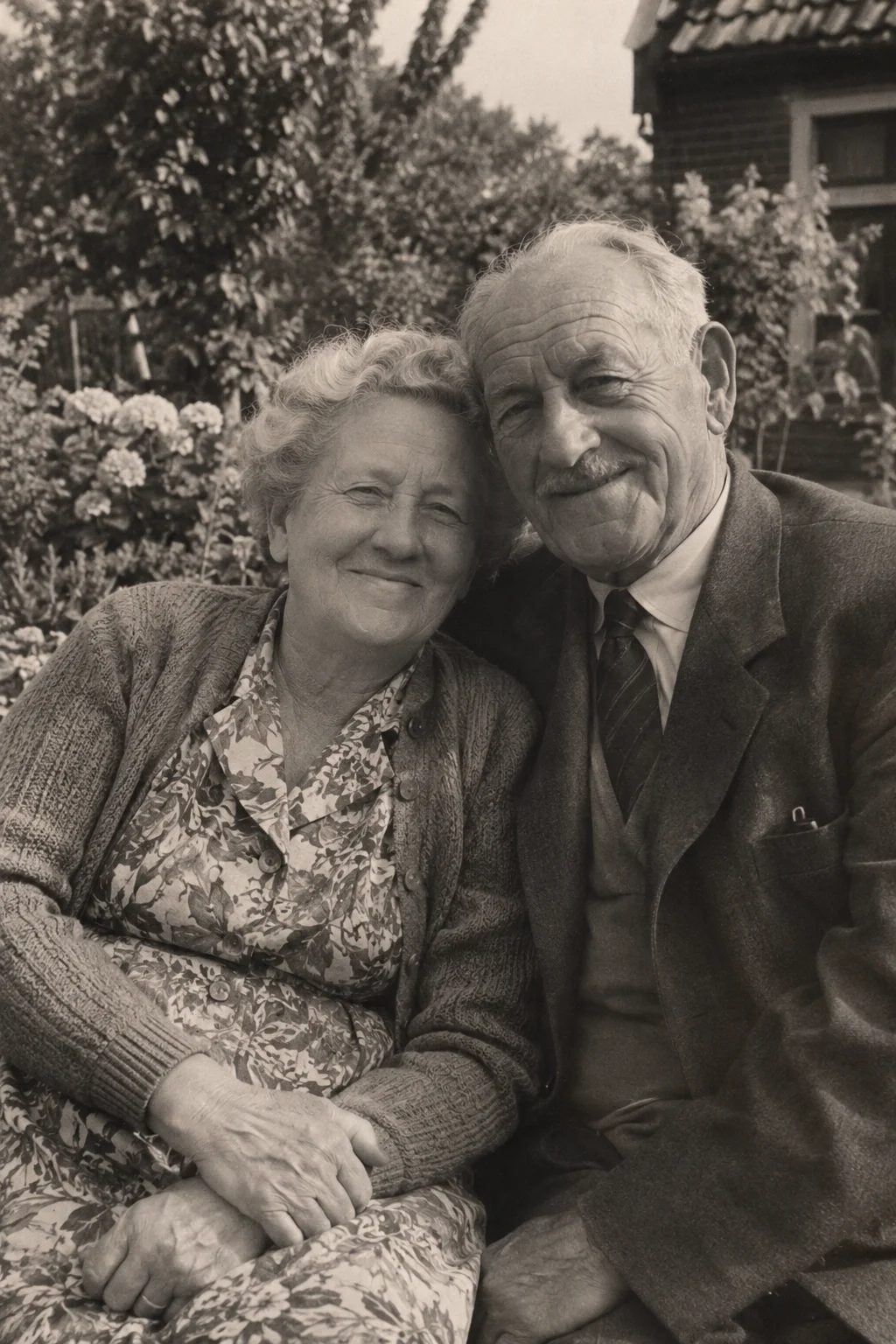
A black-and-white image can hold plenty of detail: the shape of a coat, light across a face, a familiar doorway. You can start from that photograph without first creating a separate colour version.
The important distinction is between what the picture records and what a video invents. Movement, sound and any newly interpreted colours do not establish what happened when the photograph was taken.
Start with a scan that preserves the tones
Use the clearest source you have. Check whether bright areas still contain detail and whether dark clothing has become a single black shape. If you are photographing a print, glare can hide a face even when the rest of the image looks sharp.
Keep the original scan before making contrast adjustments. Making every shadow darker or every highlight brighter may remove information that helps you recognise the subject. Compare your prepared copy with the print rather than judging it only at thumbnail size.
Choose motion that belongs in the image
For a seated portrait, begin with a slight head movement or a quiet change in expression. For a street scene, describe gentle environmental movement. Asking a still subject to walk away or turn fully around requires the video to imagine views that the photograph never showed.
An optional instruction such as “gentle movement, keep the scene monochrome” communicates your preference, but cannot guarantee unchanged tones or details. Inspect the output if the black-and-white character is important to you.
Separate atmosphere from historical evidence
Ambient sound may make a street or garden feel more present, but it is created for the video. It is not recovered location audio. A changing expression is also generated; it does not reveal how the person actually felt.
If you share the result with family, include the original photo and what you really know about it. Label uncertain names or dates as uncertain. The animation can invite a conversation without becoming evidence for the details of that conversation.
Review the small details
Watch the face, clothing edges and objects near the subject. Pause the clip if something looks unfamiliar. A result can be atmospheric while still introducing a detail you do not want to keep. VividMemory creates a video; it does not provide a separate restored or colourised photograph for download.
- Upload a JPEG, PNG or WebP within 20 MB and 40 megapixels.
- Choose six seconds using one from your allowance or ten seconds for two.
- Review the completed video alongside your original scan.
- Download the version you want to keep and identify it as an animation.